
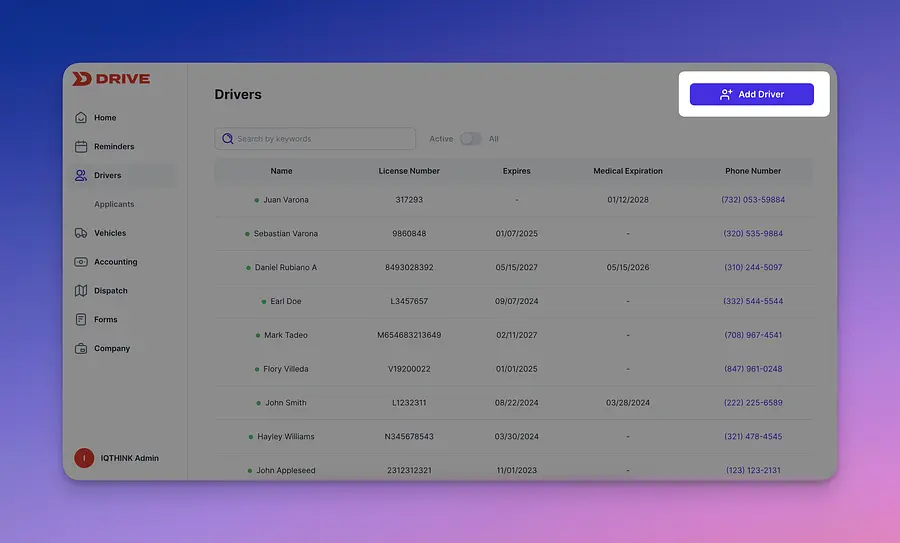
This guide is meant to help those whom already both onboarded and hired drivers. Lets head over to the driver list section and select add driver.
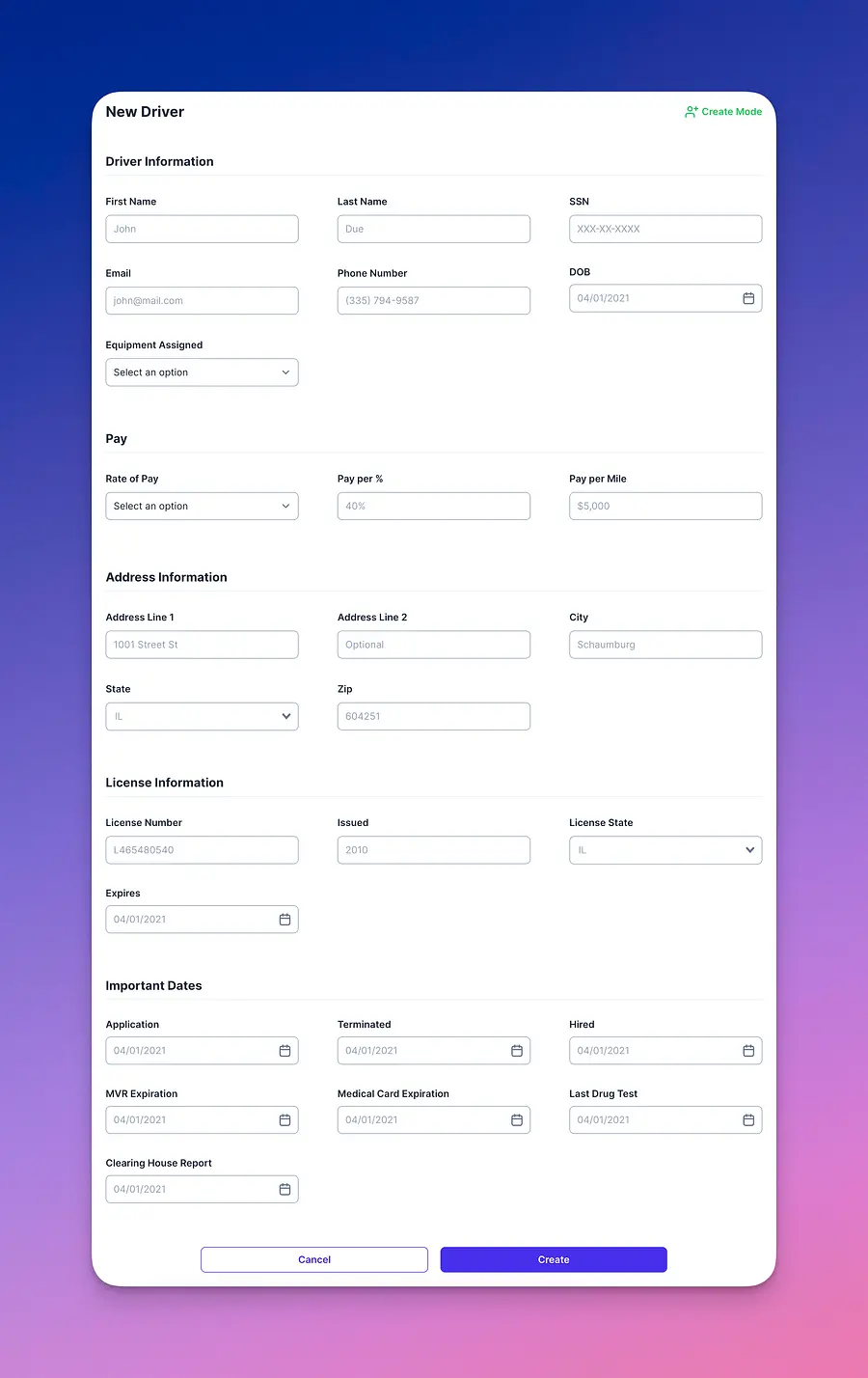
Now lets make sure we add all required information in order to move forward.
Now lets make sure we add all required information in order to move forward.
Note that any required information not entered will be enforced, that is to say the system will not allow the addition otherwise.
⚠️ System issue has been reported that driver profiles are taking a few minutes to appear on list
Note that the input in field "Issued" is only expecting a year entry. Also the "Important dates" section is not required by default. In cases where information is missing such as SSN you can enter 000-00-0000 instead or email Drivername@me.com would work. Although keep in mind that this information is necessary to adequately completing an application or other forms provided in the system.
Next, once created you will be able to locate the driver from the list and access their file.
From here you can head to forms and generate any of the ones that you might be missing. If the system requires additional information a pop up will appear.
Last but not least, scroll to the document section and upload all current documentation. The system will use this documentation to track and provide you relevant reminders. This will allow you to maintain a clean and updated driver qualification file section per driver.
We hope this short guide has provided some guidance in how to add existing drivers to the system.
If you have further questions, do not hesitate to send us an email to support@driverseo.com.