
The drivers tab is meant to help manage a company's human resource. You can add them via the "applicants" tab or you can utilize the "New Driver" button.
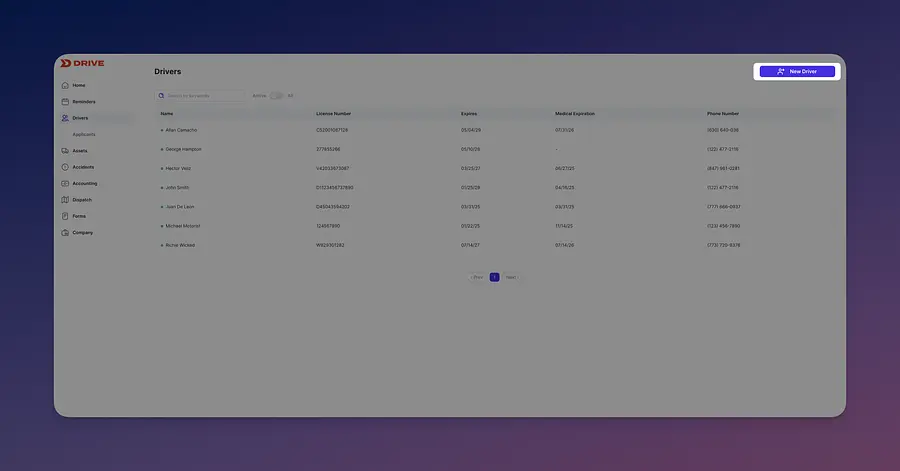
📚 Note: Only use the "New Driver" button if you are adding a driver that completed their onboarding outside of "applicants".
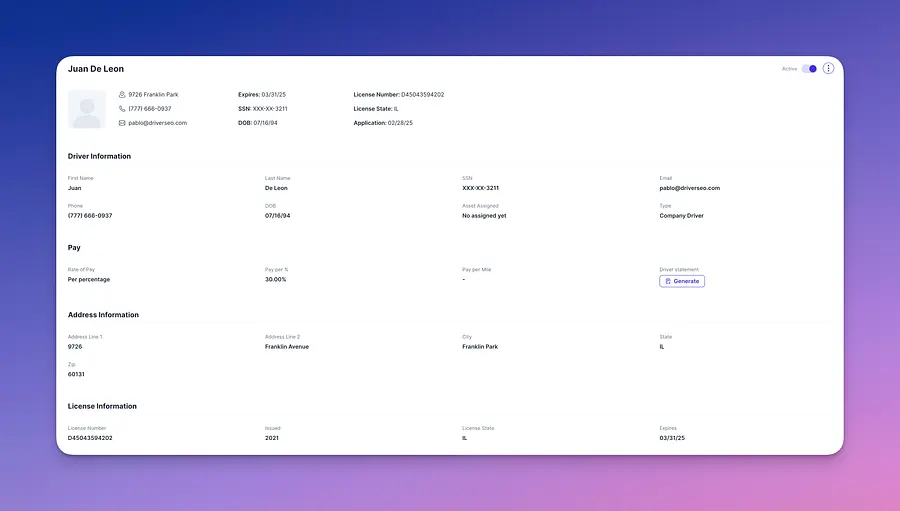
Select any driver from the list to view their detail page, which displays all accumulated driver information. From here, you can review captured data, upload missing information, and edit existing records.
At the top, you’ll see a cover displaying key driver information. From here, the buttons on the right-hand side allow you to perform two available actions.
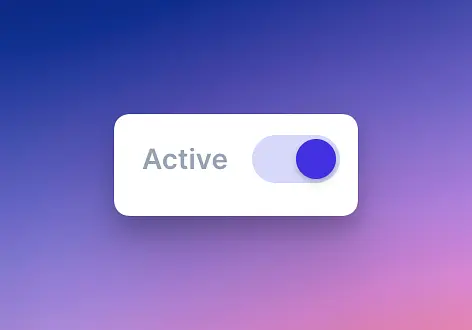
The first, is a slider which allow you to activate or inactivate a driver.
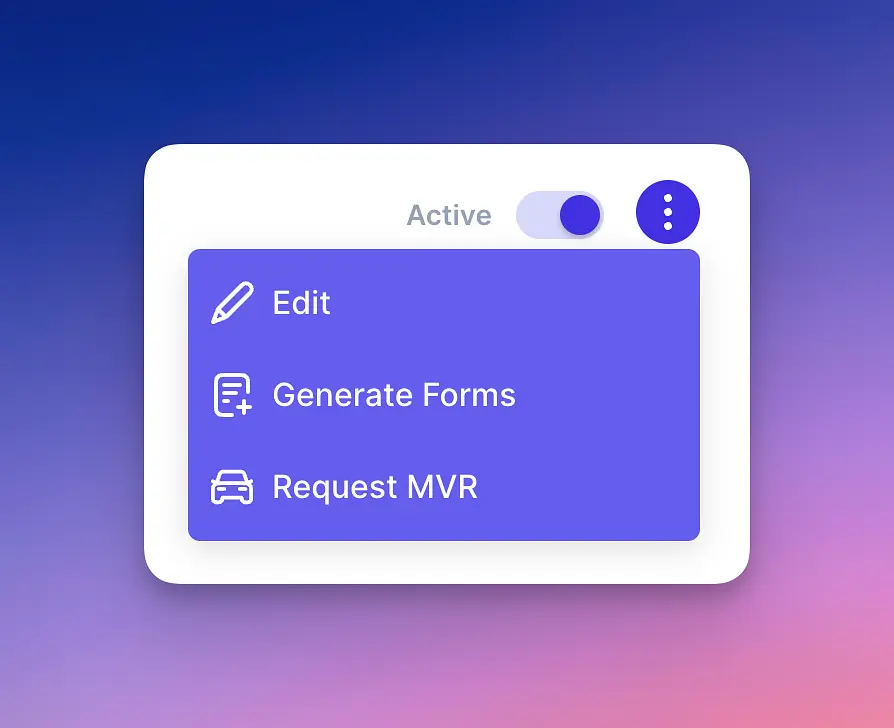
The second, is three dots that allow you to take some management actions. You can edit the record, generate forms, or request an MVR.
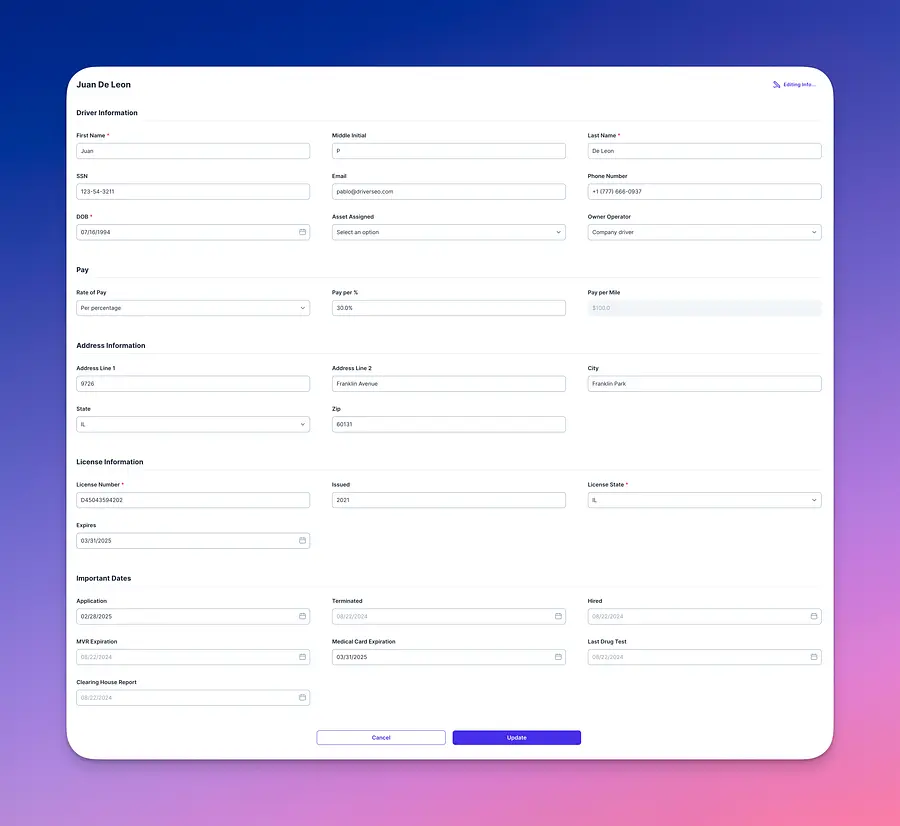
The edit option will allow you to update any information from the driver. Including the rate of payment agreed upon with the driver. This will later be used to do calculation on driver statements. More over, make sure to set up whether this driver is an owner operator or a company employee in order to save adequate information.
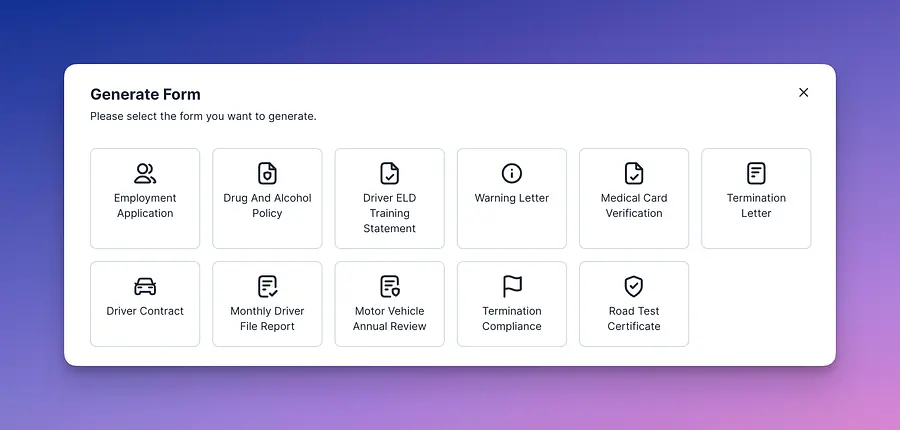
The generate forms option will allow you to generate pre-set forms that can help you on your day to day management of the driver.
At the top, you’ll see a cover displaying key driver information. From here, the buttons on the right-hand side allow you to perform two available actions.
The first, is a slider which allow you to activate or inactivate a driver.
The second, is three dots that allow you to take some management actions. You can edit the record, generate forms, or request an MVR.
The edit option will allow you to update any information from the driver. Including the rate of payment agreed upon with the driver. This will later be used to do calculation on driver statements. More over, make sure to set up whether this driver is an owner operator or a company employee in order to save adequate information.
The generate forms option will allow you to generate pre-set forms that can help you on your day to day management of the driver.
📚 Note: that all generated forms will automatically saved under the "Generated Forms" tab.
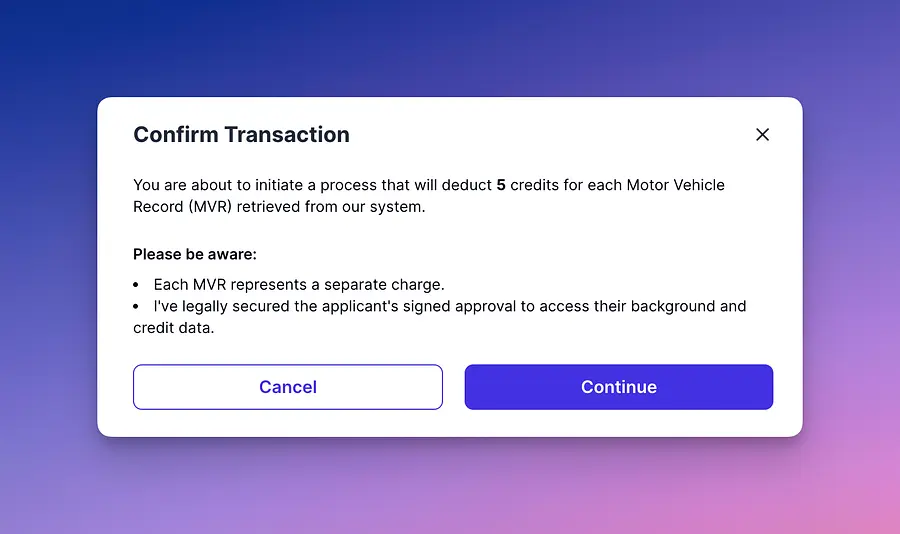
The MVR request is for when you need to either verify information or performing a driver annual review. In order to proceed all you would need is to have enough credits.
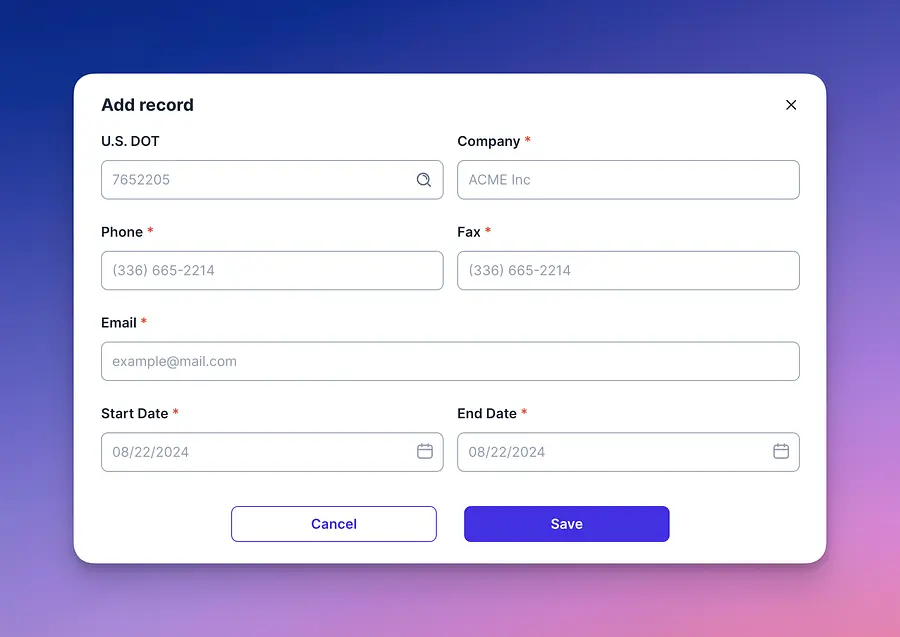
Next, you will find a list of prior employees from the application process which you will need to send for verification and complete three attempts.
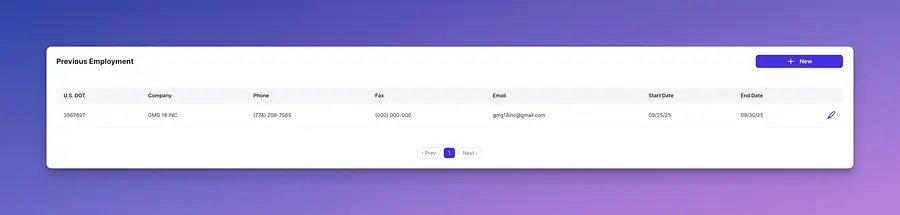
Here you can also select "New" and add a new prior employer. Upon selecting it you can easily look up companies via the USDOT number and have the system auto complete the form with the only requirements to provide the start and end date of employment.
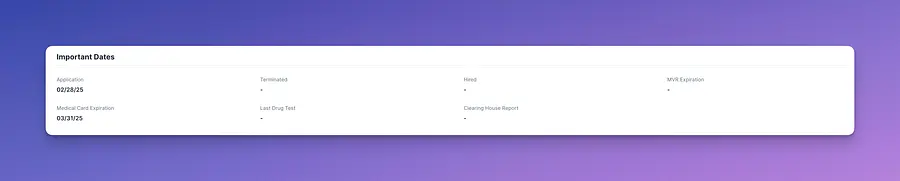
Now, as far as information goes there are some key data points that the system keeps track of to help you maintain compliance at all times. These are labeled as "Important Dates" make sure this information is updated as much as needed.
Next, you will find a list of prior employees from the application process which you will need to send for verification and complete three attempts.
Here you can also select "New" and add a new prior employer. Upon selecting it you can easily look up companies via the USDOT number and have the system auto complete the form with the only requirements to provide the start and end date of employment.
Now, as far as information goes there are some key data points that the system keeps track of to help you maintain compliance at all times. These are labeled as "Important Dates" make sure this information is updated as much as needed.
📚 Note: Some of these dates are automatically completed when certain documentation is uploaded.
Lastly, you can store documentation related to the driver, such as qualification files or other onboarding materials.
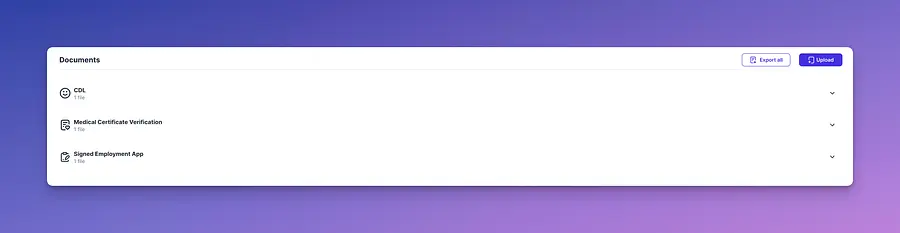
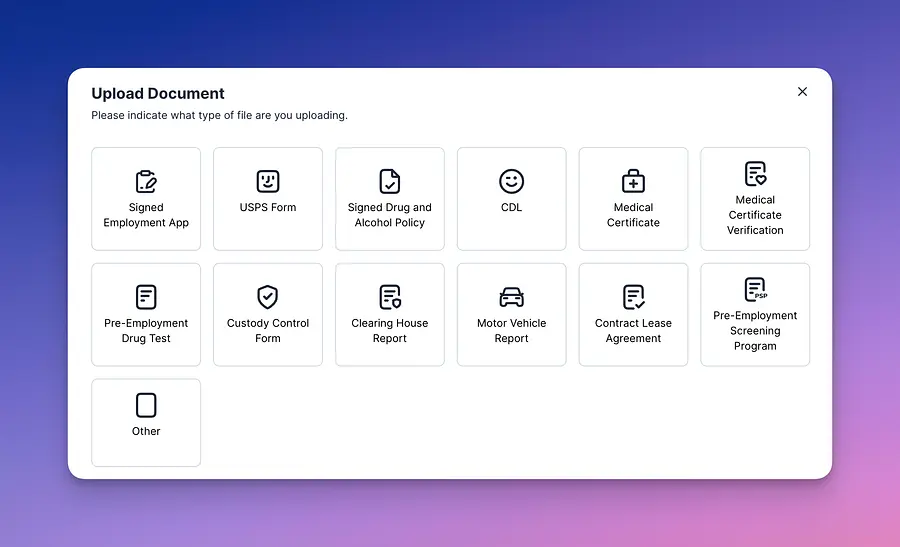
📚 Note:You may also used the "export all" button on the right side to have the system email you a package with all upload documents.