
First, loads to be included need to be closed to move forward.
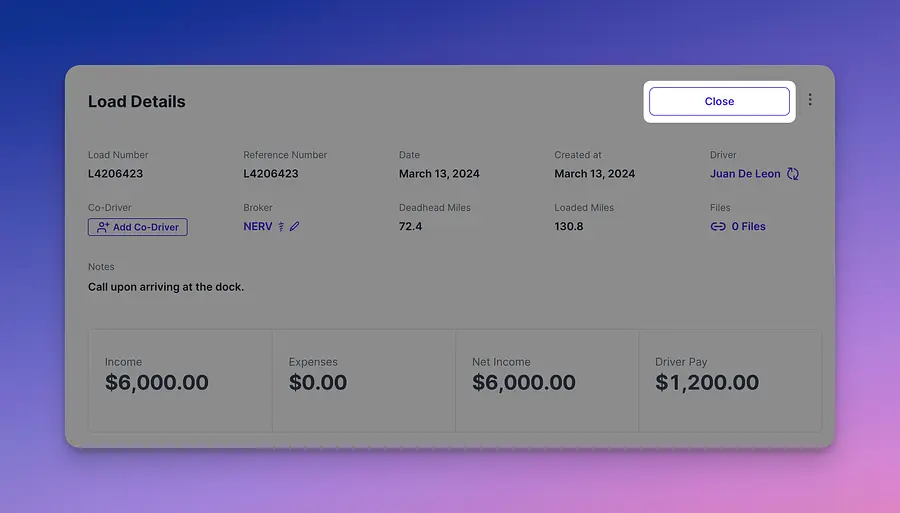
Note that once a load is closed the system will no longer allow for edits. Thus if you need to add expenses on this load this is your chance to do so. Our advise is to add expenses that can be directly attributed to the trip such as fuel.
Now lets head over to add expenses, you can now add these independent of loads. Keep in mind that the system is looking from your companies perspective. To explain, if a driver is paying insurance to your company you might be incline to consider this income, however insurance as a whole is a business expense. We streamline most of the categorizations based on the response you provide when adding the expense. More on this below.
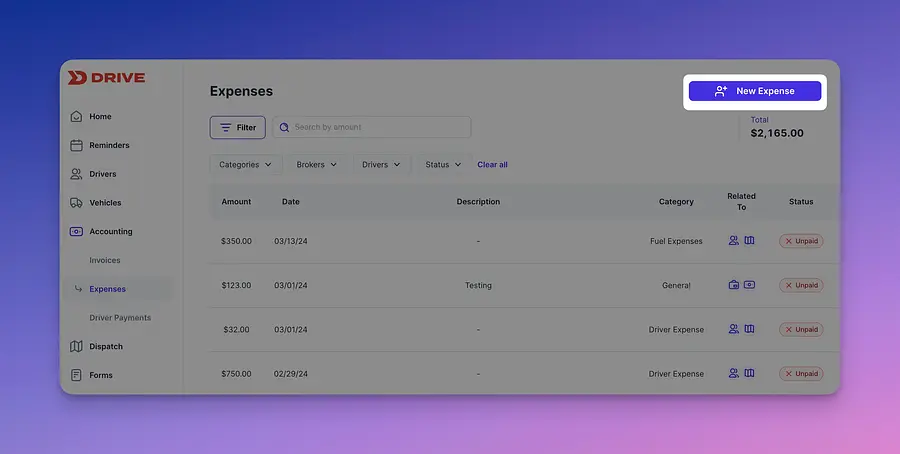
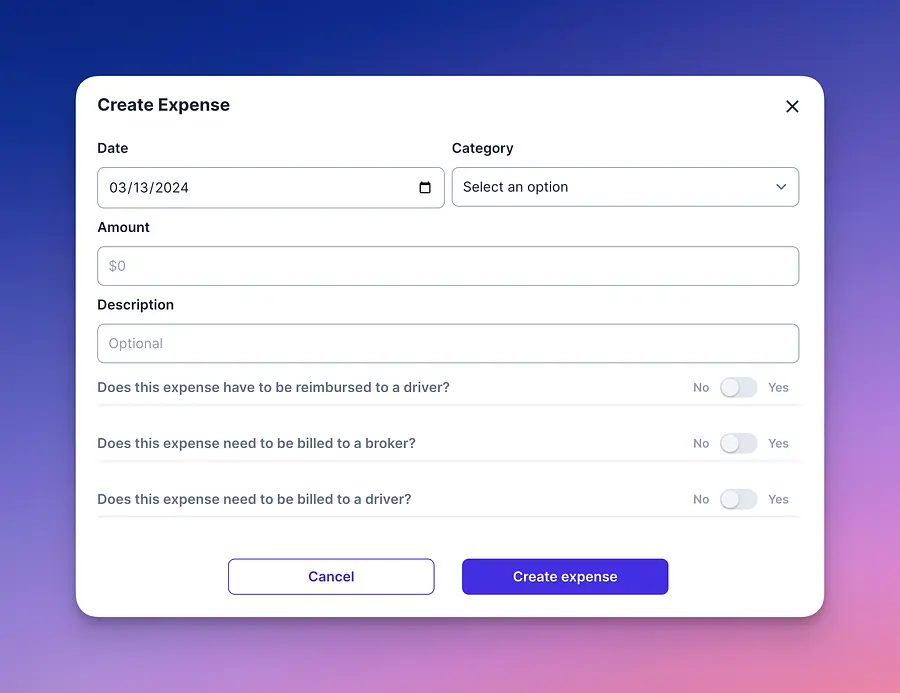
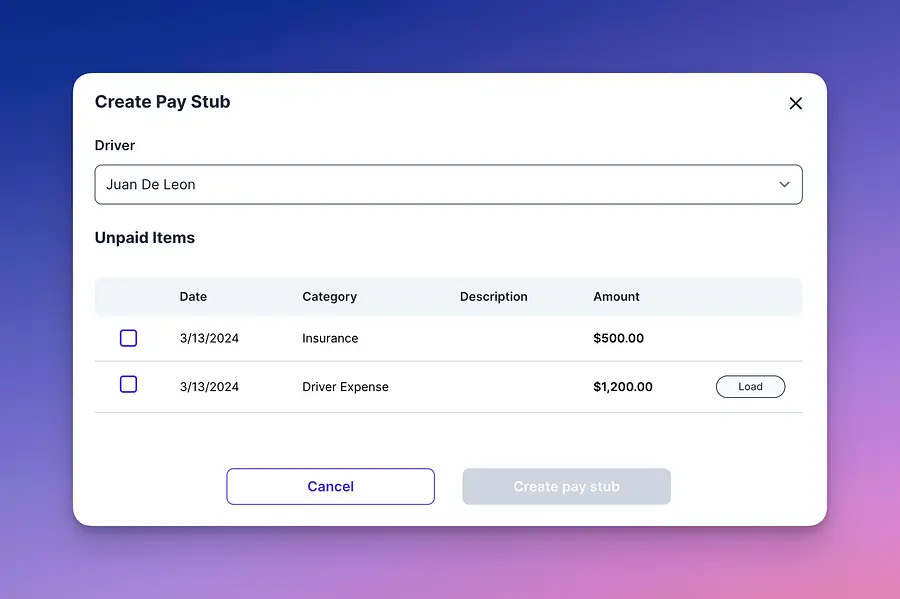
Once you are done adding expenses, you can now formulate a driver statement.
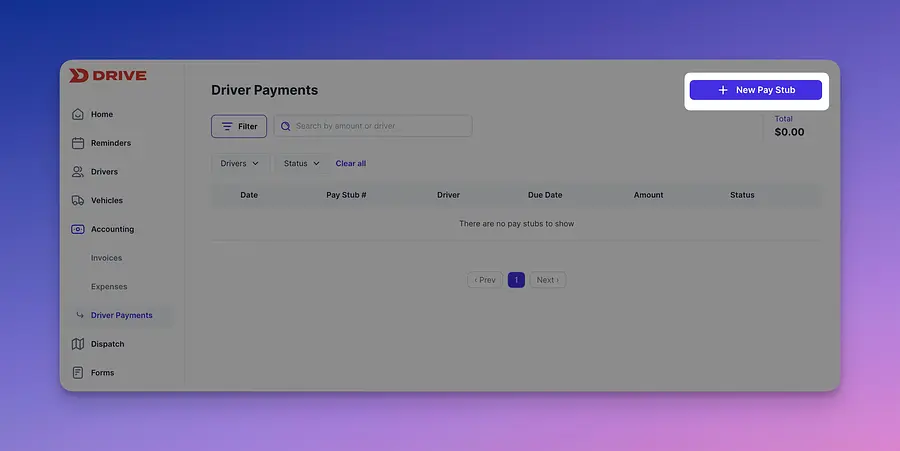
Once you are done adding expenses, you can now formulate a driver statement.
It is important to note that once a transaction, be it income from a load or an expense, is placed in a pay stub it will be locked by the system. This is to ensure that double charges or double payments are not issued.
Last, select the items you want to include in the pay stub. These will display based on the driver you have selected.
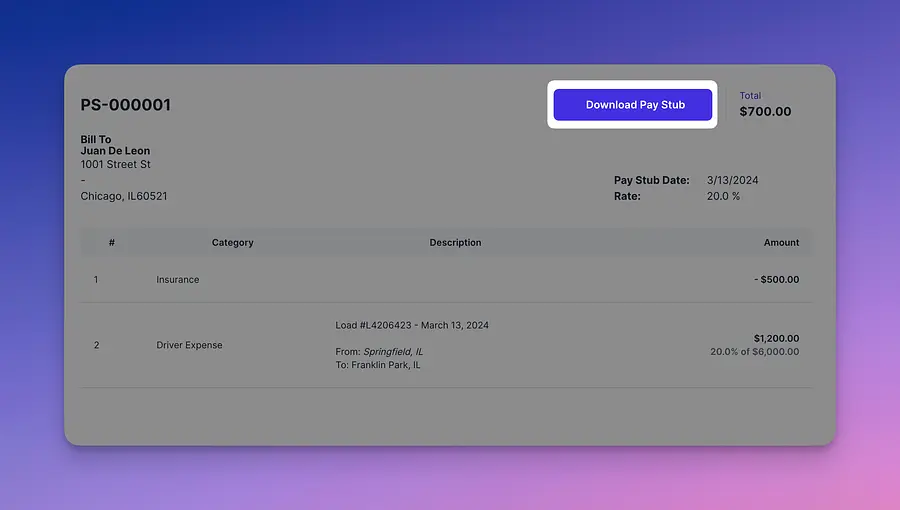
Once the paystub is submitted you can now download it and provide it along with payment due to your driver.
If you are having issues you can always send a screenshot to support@driverseo.com to get this sorted out.
We hope this short guide has provided some guidance in how to issue driver payments. If you have any questions do send us an email to support@driverseo.com and our team will reach out as soon as possible to resolve it.